Philips 105B2 Manuale Utente
Navigare online o scaricare Manuale Utente per Monitor Philips 105B2. Philips 105B2 User Manual Manuale Utente
- Pagina / 101
- Indice
- RISOLUZIONE PROBLEMI
- SEGNALIBRI

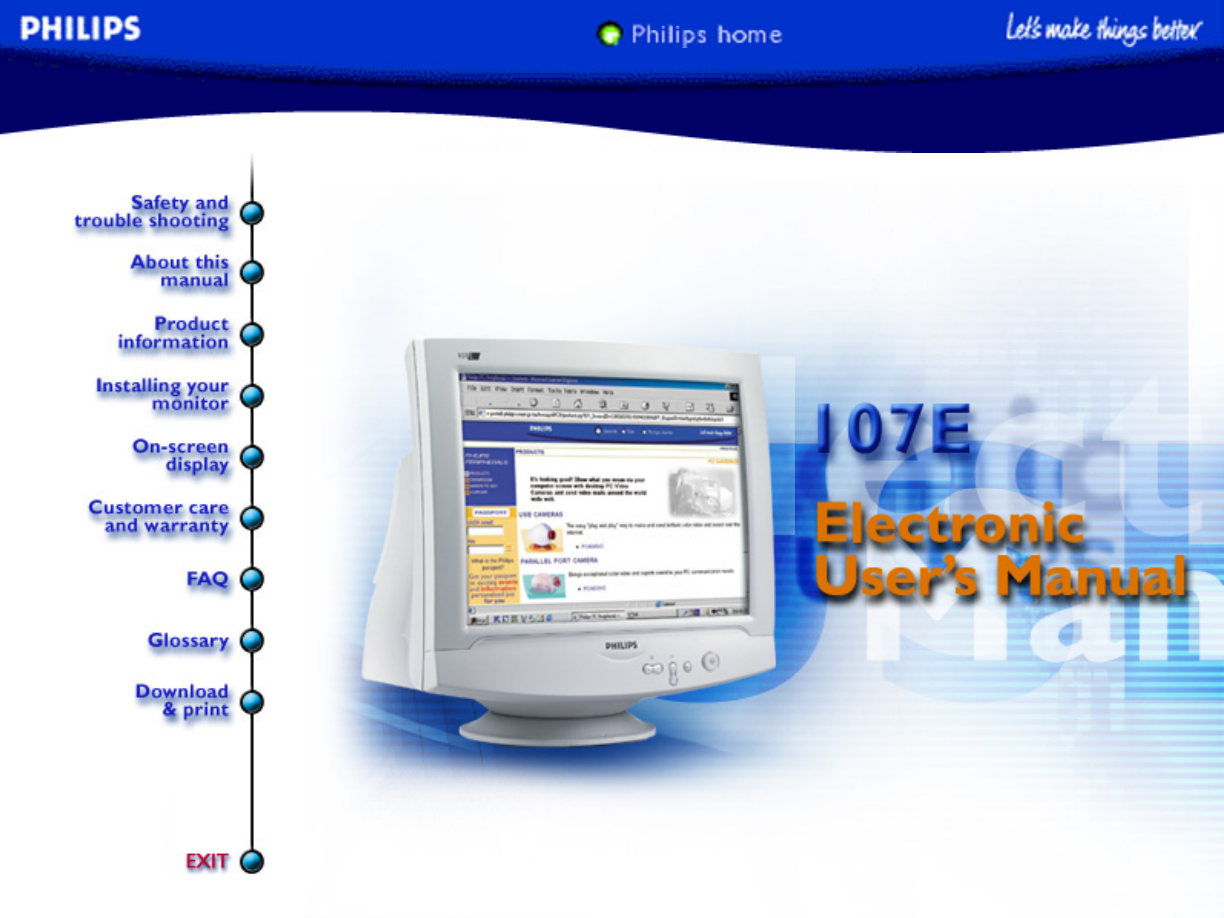
- Safety & Troubleshooting 2
- Product Information 5
- 107E Product Information 6
- Installing your Monitor 9
- Rear View 10
- RETURN TO TOP OF THE PAGE 11
- On-Screen Display 12
- The OSD Tree 13
- Customer Care & Warranty 15
- Frequently Asked Questions 16
- Glossary 28
- Dot rate 32
- INF File 34
- Interlaced/non-interlaced 34
- Self-test function 40
- UPS (Universal Power Supply) 43
- VIS (Viewable Image Size) 45
- Download and Print 46
- 109B.pdf 47
- 109S.pdf 47
- Troubleshooting 48
- Regulatory Information 50
- Environmental Requirements 51
- Flame retardants 51
- CE Declaration of Conformity 53
- Other Related Information 60
- PCUH411 USB Hub (Option) 65
- The OSD Controls 67
- ADJUST HORIZONTAL 72
- ADJUST VERTICAL 74
- to highlight SIZE 75
- ADJUST SIDE ANGLES 79
- ROTATE IMAGE 81
- 4) Press the 82
- ADJUST COLOR 83
- ADJUST MOIRE 88
- Turn on LightFrame 90
- CLOSE MAIN CONTROLS 92
- F1rst Choice Warranty 94
- Your International Guarantee 95
- LIMITED WARRANTY 96
- (Computer Monitor) 96
- United States Guarantee 100
Sommario
electronic user's manualfile:///D|/EDFU/LF3/lf3manual/english/107E/manual.html [2002/9/2 ?? 04:08:17]
UP and DOWN buttons are used when adjusting the OSD of your monitorBrightness hotkey. When the RIGHT arrow is pressed, the adjustmentcontrols for BRIG
Warranty service is available in all countries where the product is officially distributed by Philips ConsumerElectronics. In countries where Philips
This warranty gives you specific legal rights. You may have other rights which vary from state/province tostate/province.Philips Customer Care Center,
Power in - attach power cable here.1. Video In - this is a cable which is already attached to your monitor. Connect the otherend of the cable to your
On-Screen DisplayDescription of the On-Screen Display • The OSD Tree • The OSD ControlsDescription of the On Screen DisplayWhat is the On-Screen Displ
RETURN TO TOP OF THE PAGEThe OSD TreeBelow is an overall view of the structure of the On-Screen Display. You can use this as reference when youwant to
RETURN TO TOP OF THE PAGE On-Screen Displayfile:///D|/EDFU/LF3/lf3manual/english/OSD/OSDDESC.HTM (3 of 3) [2002/9/2 ?? 04:08:31]
Customer Care & WarrantyPLEASE SELECT YOUR COUNTRY/AREA TO READ THE WARRANTY COVERED:WESTERN EUROPE: Austria • Belgium • Cyprus • Denmark • France
Frequently Asked Questions1. What does the "Designed for Windows" logo signify?The "Designed for Windows" logo means your Phi
5. Where can I buy a USB hub for my Philips monitor?Philips provides an optional USB hub (type number: PCUH411) which can be attached to thebase
TCO95: Standby mode < 30W, Off mode < 8WTCO99: Standby mode < 15W, Off mode < 5W Visual Ergonomics:MPRII: No requirement.TCO92: No require
A low refresh rate or electrical interference typically causes flickering in the picture. Possiblesolutions include the following:Verify that the prop
Safety and Troubleshooting InformationSafety Precautions and Maintenance • Troubleshooting • Regulatory Information • OtherRelated InformationSafety p
LightFrame" consists of a software application and an Integrated Circuit (IC) embedded in themonitor. Together, they boost brightness and sharpne
22. What will happen when my system is no longer connected to a LightFrame" enabledmonitor - for example, when I take my notebook on the road?
27. What are Philips Multimedia Base's specifications? See detailed Multimedia Base specifications on the product information page. 28. Why
32. How does Auto Calibrate work? During the calibration process, different predefined black and white images are displayed onthescreen. The beam cu
newer models have this option in the On Screen Display under Input Signal Selection.Video card may be not be a VESA standard (try the monitor with ano
Yes, when degaussing your monitor via the OSD, it is normal for the monitor to make arelatively loud noise. Please be aware that many models will not
Select under Advanced Controls in the monitor 's OSD. Most computers require it to be set at 0.7V.Please review the following for possible solut
Reboot your computer while holding the Ctrl key on your computer. If you see any pictureduring the boot procedure, please verify the settings of your
GlossaryA B C D E F G H I J K L M N O P Q R S T U V W X Y ZAAutoscanA microprocessor-based feature of Philips Brilliance monitors is able to detect au
CCE MarkCE mark is displayed on products per EMC and LV ( low Voltage Device ) directives in compliance withEuropean Community safety, EMI and EMS req
About This Electronic User's ManualAbout This Guide • Other Documents You May Need • Notational DescriptionsAbout This GuideThis electronic user&
Points where convergence error is specified. Convergence-error correctionA method of correcting for convergence error to insure that all three beams l
controller to be automatically configured to make optimal use of the display without manual user interaction.DDC is implemented as part of the new Plu
Dot rateFrequency in MHz of the dot clock. It is a measure of the speed with which data is transferred between thevideo card and subsequent processin
In 1991, the Swedish Tjänstemannens Central Organization (TCO, Swedish confederation of ProfessionalEmployees ) set a standard even more severe than M
Also called line frequency and expressed in kHz, it is the number of video lines written on the screen everysecond (from left to right). The higher th
LLinearityThe degree to measure the actual location of a pixel on the screen corresponds with its intended location. (see figure ) Line frequencySee
MMoiré effectA fringe pattern arising from the interference between two superimposed line patterns.In a monitor it comes from the interference between
screen area, resulting in an image that is smaller (and less legible) than it needs to be.RETURN TO TOP OF THE PAGE PParallelogram DistortionSee Geome
RRasterThe area on screen that electron beam can reach. Refresh rateSee Vertical scanning frequency. ResolutionThe number of pixels that can be displ
Anti-Static coatingsDue to bombardment by beam electrons, monitor screens become electrically charged when in use.Electrically charged screens surface
Notes, Cautions, and WarningsThroughout this guide, blocks of text may be accompanied by an icon and printed in bold type or in italictype. These bloc
The ARAS coating reflects only about 0.5% of the incident light. AGRAS (Anti-Glare anti-Reflection Anti-Static) coating.A combined anti-reflection, an
SOG (Synchronization On Green)A properly functioning color monitor requires five kinds of signals: horizontal sync pulse, vertical sync pulse,red colo
See rotation function. Trapezoid distortionSee Geometrical distortion. TTL signalA TTL (Transistor-transistor-logic) signal is a digital signal level
signaling.A hub consists of two portions: the Hub Controller and Hub Repeater. The repeater is a protocol-controlledswitch between the upstream port a
VVertical dot pitchSee Dot pitch. Vertical scanning frequencyExpressed in Hz, this is the number of fields written to the screen every second in inte
resolutions from 1280 x 1024 to 1600 x 1280, horizontal line frequencies up to 90 kHz and bandwidths up to200 MHz. VIS (Viewable Image Size)The real s
Download and PrintThis page provides an option to read the manual in .pdf format. PDF files can be downloaded into your harddisk, then viewed and prin
109B.pdf109S.pdfDownload and Printfile:///D|/EDFU/LF3/lf3manual/english/DOWNLOAD/DOWNLOAD.HTM (2 of 2) [2002/9/2 ?? 04:08:32]
TroubleshootingSafety Precautions and Maintenance • Troubleshooting • Regulatory Information • OtherRelated InformationCommon ProblemsHaving trouble?
Dim PictureAdjust the Brightness and Contrast controls.● Check your video card and it's owner's manual instructions for itmay be a non-VES
Product InformationProduct Features • Technical Specifications • Automatic Power Saving • PhysicalSpecification • Pin Assignment • Product ViewsProduc
Regulatory InformationTCO '99 Information • TCO'99 Environmental Requirements • TCO '95 Information • TCO'95 EnvironmentalRequirem
TCO DevelopmentSE-114 94 Stockholm, SwedenFax: +46 8 782 92 07Email (Internet): [email protected] information regarding TCO'99 approved a
Congratulations!You have just purchased a TCO'95 approved and labelled product! Your choice has provided you with a product developed forprofess
Brominated flame retardantsBrominated flame retardants are present in printed circuit boards, cables, wires, casings and housings. In turn, they delay
- TCO95, TCO99 (Requirement for Environment Labelling of Ergonomics, Energy, Ecology and Emission,TCO: Swedish Confederation of Professional Employees
Changes or modifications not expressly approved by the party responsible for compliancecould void the user's authority to operate the equipment.U
VCCI Notice (Japan Only)This is a Class B product based on the standard of the Voluntary Control Council for Interference (VCCI) for Information techn
RETURN TO TOP OF THE PAGENorth Europe InformationPlacering/VentilationVARNING:FÖRSÄKRA DIG OM ATT HUVUDBRYTARE OCH UTTAG ÄR LÄTÅTKOMLIGA, NÄRDU STÄLL
Plassering/VentilasjonADVARSEL:NÅR DETTE UTSTYRET PLASSERES, MÅ DU PASSE PÅ AT KONTAKTENE FORSTØMTILFØRSEL ER LETTE Å NÅ. RETURN TO TOP OF THE PAGE BS
Information for UK only WARNING - THIS APPLIANCE MUST BEEARTHED.Important:This apparatus is supplied with an approvedmoulded 13A plug. To change a fus
VIDEO• Video dot rate 108 MHz• Input impedance- Video 75 ohm- Sync 2.2 kOhm• Input signal levels 0.7 Vpp• Sync input signalSeparate syncComposite sync
Other Related InformationSafety Precautions and Maintenance • Troubleshooting • Regulatory Information •Information for Users in the U. S. • Informati
6G3B11 Multimedia Base (option)Front View • Rear View • Technical Specifications • Description of the Controls • Installingyour Multimedia Base • Powe
D. Microphone jackAttach your microphone here.E. Audio InConnect this to the audiooutput of your PC.F. MIC OutConnect this to the microphoneoutput of
2. To UN-INSTALLLift the back hook from the hole on the bottomplate of your monitor.● Slide out the pedestal the opposite direction (fromwhen you in
RETURN TO TOP OF THE PAGE6G3B11 Multimedia Base (option)file:///D|/EDFU/LF3/lf3manual/english/INSTALL_2/mm_pede/mm_inst.htm (4 of 4) [2002/9/2 ?? 04:1
PCUH411 USB Hub (Option)Front View • Rear View • Installing your USB HubInstalling your USB HubInstalling on aconventional base.Take out theUSB hub fr
of the MultimediaPedestal.Attach the USBhub by sliding-into the Multimediabase.7. RETURN TO TOP OF THE PAGEUSB Hub (Optional Feature)file:///D|/EDFU/
The OSD ControlsDescription of the On-Screen Display • The OSD TreeThe OSD Controls : Brightness (HotKey) • Contrast (HotKey) • Language • Input Signa
1) Press the or button on the monitor. The CONTRAST window appears.2) Press the or button to adjust the contrast.3) When the contrast is adjusted
3) Press the or button until the desired language is highlighted.4) Press the button to confirm your selection and return to MAIN CONTROLS window.
If you have VESA's DPMS compliance display card or software installed in your PC, the monitor canautomatically reduce its power consumption when
RETURN TO TOP OF THE PAGEINPUT SIGNAL SELECTION (Not available in all models)INPUT SIGNAL SELECTION determines what you see on the screen. The default
MAIN CONTROLS will be highlighted.SmartHelpAfter returning to MAIN CONTROLS . . .. . . to continue to ZOOM, press the button until ZOOM is highlighted
4) Press the or button to adjust ZOOM.5) Press the button to confirm your selection and return to the MAIN CONTROLS window. CLOSEMAIN CONTROLS will
3) Press the button. The ADJUST HORIZONTAL window appears. POSITION should be highlighted.4) Press the or button to move the image to the left or
6) To adjust the horizontal size, press the or button.7) When the size is adjusted, press the button to return to MAIN CONTROLS window. CLOSE MAINC
3) Press the button. The ADJUST VERTICAL window appears. POSITION should be highlighted.4) Press the or button to move the image up or down.5) Whe
6) To adjust the vertical size, press the or button.7) When the size is adjusted, press the button to return to MAIN CONTROLS window. CLOSE MAINCON
3) Press the button. The ADJUST SHAPE window appears. ADJUST SIDE CURVE should behighlighted.4) Press the button. The SIDE CURVE window appears. PIN
5) To adjust the pincushion, press the or button.6) When the pincushion is adjusted, press the button to highlight BALANCED or press the buttonto
SmartHelpAfter returning to MAIN CONTROLS . . ...to continue to ADJUST SIDE ANGLES, start with step 5 under ADJUST SIDEANGLES and follow the directio
The 15-pin D-sub connector (male) of the signal cable (IBM systems): PinNo.Assignment PinNo.Assignment1 Red video input 9 No pin2 Green video input 10
4) Press the button to highlight ADJUST SIDE ANGLES.5) Press the button. The SIDE ANGLES window appears. TRAPEZOID should be highlighted.6) To adjus
8) To adjust the parallelogram, press the or button.9) When the parallelogram is adjusted, press the button to return to the ADJUST SHAPE window.BA
3) Press the button. The ADJUST SHAPE window appears. ADJUST SIDE CURVE should behighlighted.4) Press the arrow until ROTATE IMAGE is highlighted.5)
6) To adjust the rotation, press the or button.7) When the rotation is adjusted, press the button to return to the ADJUST SHAPE window. BACK TOMAIN
3) Press the button. The ADJUST COLOR window appears.4) Press the or button to highlight 9300K for GENERAL USE, 6500K for IMAGE MANAGEMENT,5500K fo
6a) If USER PRESET is highlighted, press the button to highlight RED. Next, press the orbutton to adjust the color red.6b) When finished with RED, p
RESET TO FACTORY SETTINGS returns everything in all the windows to factory presets.1) Press the button on the monitor. The MAIN CONTROLS window appea
SmartHelpAfter returning to MAIN CONTROLS . . .. . . to continue to EXTRA CONTROLS, press the button until EXTRACONTROLS is highlighted. Next, start w
5) To degauss your screen, press the button. Your screen will be degaussed, then the MAINCONTROLS window will reappear. CLOSE MAIN CONTROLS will be h
3) Press the button. The EXTRA CONTROLS window appears. ADJUST MOIRE will be highlighted. 4) Press the button. The ADJUST MOIRE window appears. HO
Installing your MonitorFront View • Rear View • 6G3B11 Multimedia Base (option) • PCUH411 USB Hub (option)Front ViewPower button switches your monitor
5) To adjust the horizontal moire, press the or button.6) When the horizontal moire is adjusted, press the button to highlight VERTICAL.7) To adju
on the LIGHTFRAME function to activate in full screen mode.1) Press button on the monitor. The MAIN CONTROLS window appears.2) Press the button unti
5) Pess the button. LIGHTFRAME will be activated.6) Press button to go back to MAIN CONTROLS. Press button again to exit the OSD. RETURN TO TOP OF
RETURN TO TOP OF THE PAGE The OSD Controlsfile:///D|/EDFU/LF3/lf3manual/english/OSD/osd_cont.htm (27 of 27) [2002/9/2 ?? 04:11:10]
Your International Philips F1rst Choice WarrantyThank you for purchasing this Philips monitor.All Philips monitors are designed and manufactured to hi
Your International GuaranteeDear Customer,Thank you for purchasing this Philips product which has been designed and manufactured to the highestquality
LIMITED WARRANTY(Computer Monitor) One Year Exchange**Product will be exchanged with a new or renewed to original specifications unit within two busin
For more information, contact the Philips Customer Care Center by calling (877) 835-1838 (U.S.A.customers only) or (903) 242-4804.Before Requesting Se
All Philips monitors are designed and manufactured to high standards and deliver high-qualityperformance, ease of use and ease of installation. Should
LIMITED WARRANTY(Computer Monitor) Three Years Free Labor / Three Years Free Service on Parts / One Year Exchange**Product will be exchanged with a ne
Prodotti e manuali riguardandi Monitor Philips 105B2
 (1 pagine)
 (133 pagine)
(2 pagine)
(133 pagine)
(2 pagine)
 (125 pagine)
(96 pagine)
(2 pagine)
(2 pagine)
(99 pagine)
(2 pagine)
(137 pagine)
(125 pagine)
(96 pagine)
(2 pagine)
(2 pagine)
(99 pagine)
(2 pagine)
(137 pagine)
 (114 pagine)
(2 pagine)
(3 pagine)
(89 pagine)
(2 pagine)
(2 pagine)
(2 pagine)
(89 pagine)
(2 pagine)
(133 pagine)
(114 pagine)
(2 pagine)
(3 pagine)
(89 pagine)
(2 pagine)
(2 pagine)
(2 pagine)
(89 pagine)
(2 pagine)
(133 pagine)
© 2020, manymanuals.it. Tutti i diritti riservati | 0.069 s |
 Manymanuals.com
 Manymanuals.de
 Manymanuals.fr
 Manymanuals.it
 Manymanuals.pl
 Manymanuals.cz
 Manymanuals.es
 Manymanuals-pt.com
Commenti su questo manuale